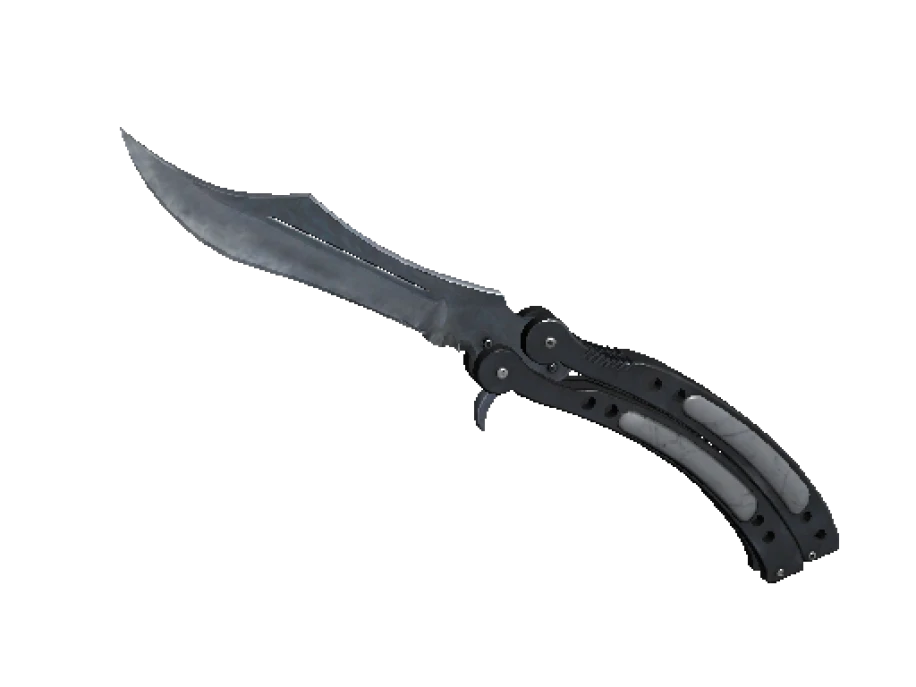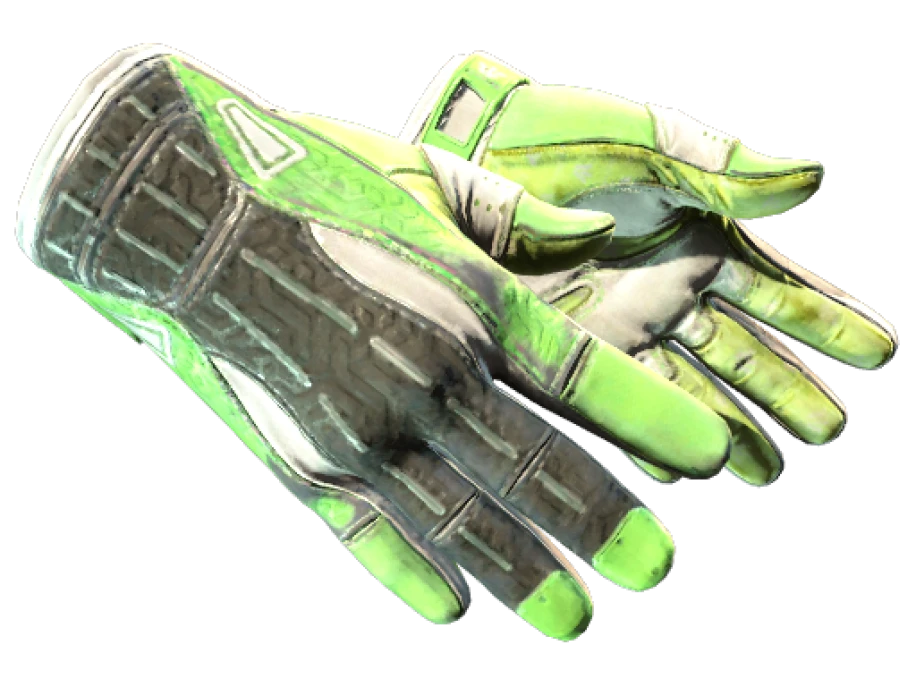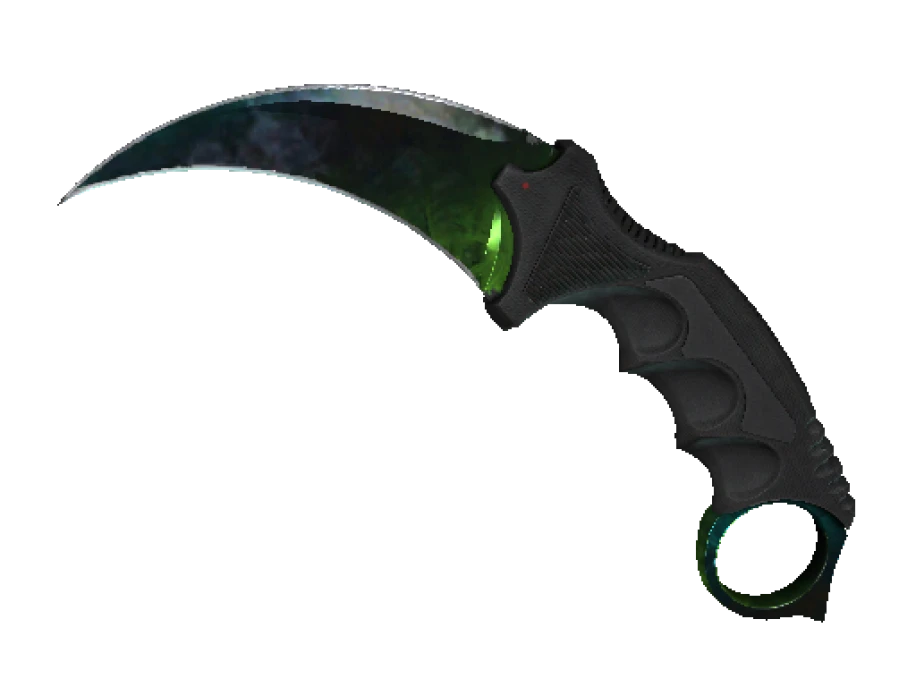



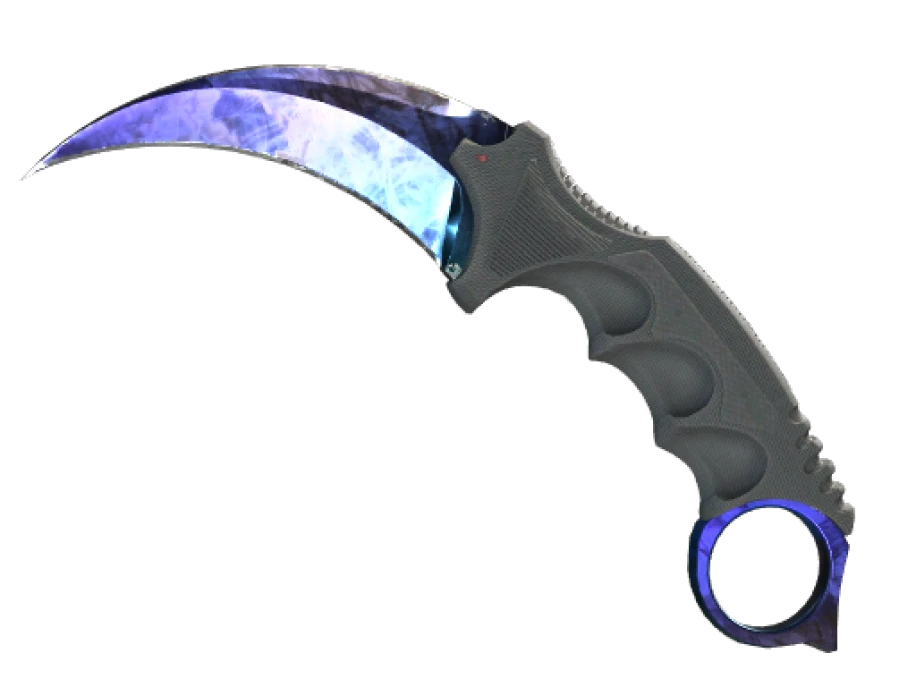
An inspect link is the closest thing CS2 has to a serial number check. It points at one specific item in one specific inventory, and it lets the game, or a checker site, pull that item’s real data: float, pattern, stickers, phase. A screenshot shows you what someone wants you to see. An inspect link shows you the item.
What an inspect link looks like
It is a Steam protocol link that starts with steam://rungame/730/ and ends with a long string. Inside that string are three values. One is the owner: either the Steam ID of the inventory holding the item, or the ID of a Market listing. One is the asset ID, the number Steam gives this particular copy. The last is a D value that acts as a key for the preview. Together they name exactly one item in the whole game.
Click it with Steam running and CS2 launches, or comes to the front if it is already open, and shows the item in the inspect view. You can turn it, zoom in on the playside and read the stickers. What you see is rendered by the game from the item’s data, not from a picture someone uploaded.
Where to find it
- Steam Community Market. Every listing has an Inspect in Game button. Right-click it and copy the link address.
- Your own inventory. Open the item, and the Inspect in Game button on the item panel carries the link.
- Trade offers. Each item in an offer can be inspected. This is the one to use before you accept.
- Skin shops and checker sites. Most show an inspect button on every listing. If a listing has no inspect link and no float, treat that as a gap in the listing.
What a checker returns
Float checker sites take the link, ask the game servers for the item’s data, and print it. Here is what comes back and what to do with each field.
| Field | What it is | What it tells you |
|---|---|---|
| Float value | A number between 0 and 1 | The exact wear. Compare it with the wear label and with the finish’s own float range. |
| Pattern index | A number between 0 and 1000 | Where the texture sits on the model. On Case Hardened, Fade, Marble Fade, Crimson Web and Slaughter it decides the premium. |
| Paint index | The ID of the finish | On Doppler and Gamma Doppler it names the phase. Checkers print the phase next to it. |
| Stickers | Name, slot and wear of each sticker | Whether the craft is what the listing claims, and how scraped each sticker is. |
| Rendered image | A full-size picture of this copy | What the float and pattern look like on this item, on the side you see in first person. |
Some checkers also show the item’s origin, meaning whether it dropped, came out of a case or came out of a trade-up. Useful context, but the five fields above are the ones that decide what the item is.
Why a screenshot is never proof
A screenshot is a picture. It can be of a different item. It can be edited. It can be taken from an angle that hides the yellow on a Marble Fade or the gold on a Case Hardened. It never shows the float, the seed or the sticker wear, because those are numbers, not pixels. And a screenshot taken a while ago says nothing about whether the seller still has the item.
An inspect link answers every one of those points. It ties to one asset ID in one inventory. If the item has been traded away, the link stops working, because the asset ID changes every time the item moves. If the listing has been sold, the Market link dies with it. And the data comes from the game, not from the seller.
If there is no inspect link, there is no proof. Ask for one or walk away.
That also means an old inspect link is a warning sign. If a seller hands you a link that no longer resolves, the item is not where they say it is. Ask for a fresh one.
How to use one, step by step
- Copy the link from the listing, the Market or the trade offer.
- Paste it into a float checker. Read the float, the pattern index and the paint index. Check that the wear label on the listing matches the float band.
- Look at the rendered image. Focus on the playside, the side that faces you in first person. This is where float and pattern show, or do not.
- If the skin is a Doppler, confirm the phase. If it is a pattern skin, look the seed up on a tier list. If there are stickers, check each one’s wear.
- Open the link in the game as well if the item costs enough to care. The in-game inspect shows the item under the game’s own lighting, and knives and gloves in particular look different in motion.
Do this before a trade offer is accepted, not after. An accepted trade is done, and the inspect view will still be there afterwards to show you what you should have looked at.
Limits of the link
An inspect link tells you what the item is. It does not tell you who is selling it, whether the price is fair, or whether the seller will actually send it. It does not carry a StatTrak count to you either, because the counter resets when the item changes hands. Treat the link as the identity check and do the rest of the homework separately.
Every lot on PrefireSkins shows its exterior and, where known, its float from inspect data. Before you accept the trade offer, inspect the item in the offer itself. A full refund is available until the trade is accepted. After that the item is yours, so make the check count.